Updated rating list
Belgian Backgammon Federation
Rating Website User Manual
Contents
- Who can use what
- Header and main navigation
- Reading the rating list
- Player details and history
- Rating analysis tools
- Matches and filters
- Rating-responsible login
- Player sessions
- Adding match results
- Editing and reordering your matches
- Account and logout
- Desktop and mobile differences
- Messages and common problems
Who Can Use What
The site opens in Public view. No account is needed to browse ratings, player statistics, graphs, records, or match results.
A Rating responsible sees the same public information plus Add, Account, and controls for matches that he or she entered. This manual does not cover the administrator section.
Header and Main Navigation
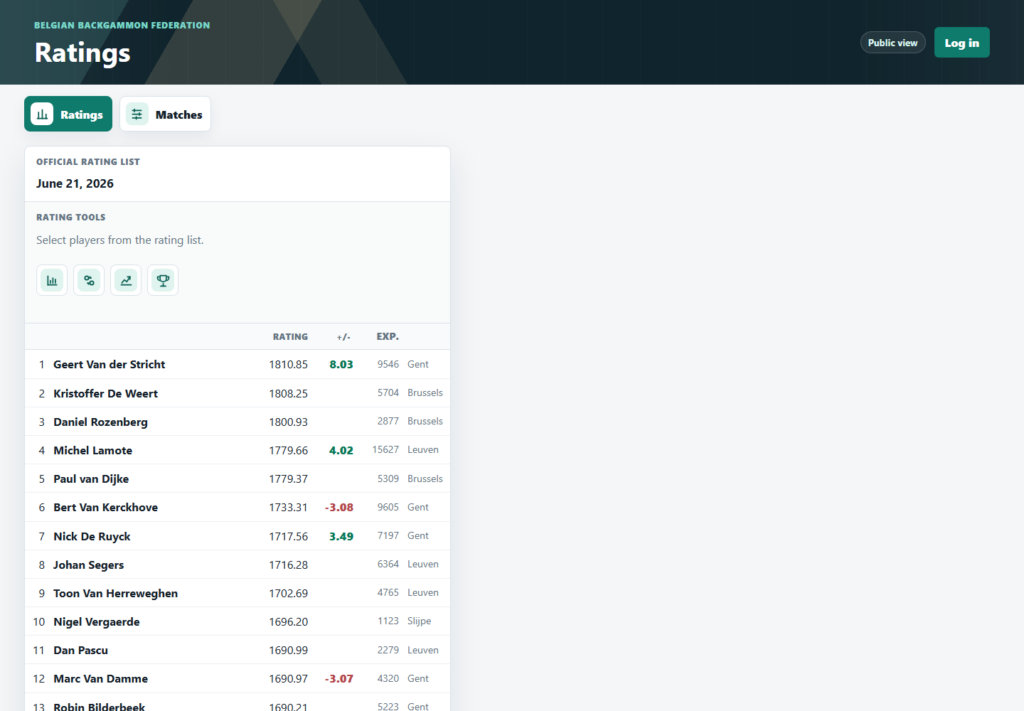
- Belgian Backgammon Federation in the top-left opens the federation website.
- Log in opens the sign-in page. After sign-in, the header shows the role, linked player, username, and Log out.
- Ratings shows the official rating list and analysis tools.
- Matches shows match results, 100 at a time, with filtering and page controls.
- BGFed event calendar in the footer opens the federation calendar.
Tip: A green navigation button means that section is open. On desktop, more than one panel can remain open side by side. On mobile, choosing a section replaces the current panel.
Reading the Rating List
The date below Official rating list is the calculation date. Players with at least 100 experience points appear in rating order. Players below that threshold appear in the separate preliminary list further down.
| Column | Meaning |
|---|---|
| Number | The player’s current position among established players. |
| Name | Click or tap the row to select that player. |
| Rating | The rating after all included matches have been processed. |
| +/- | The rating change over the previous 14 days. Positive values are green and negative values are red; blank means no change. |
| Exp. | Experience accumulated from rated match lengths. |
| Club | The player’s registered club. |
Click a selected row again to clear it. Selecting a different row moves a single-player selection to the new player. The evolution graph is the exception: it allows several players to remain selected.
Player Details and Match History
Click any player row to open a quick summary above the table. The selected row is highlighted.
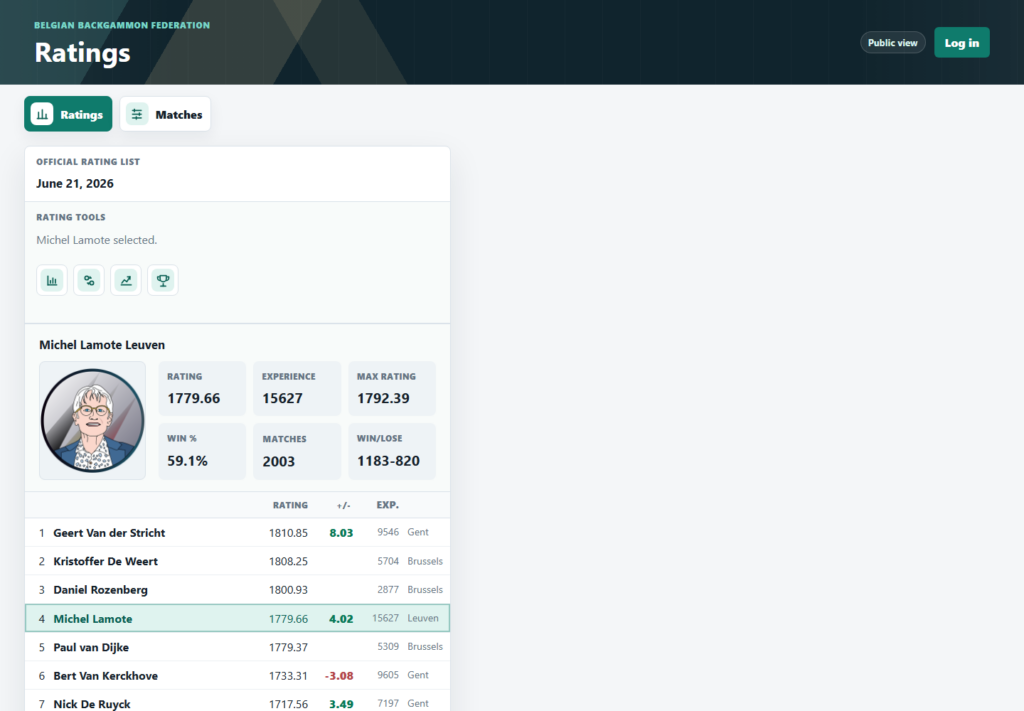
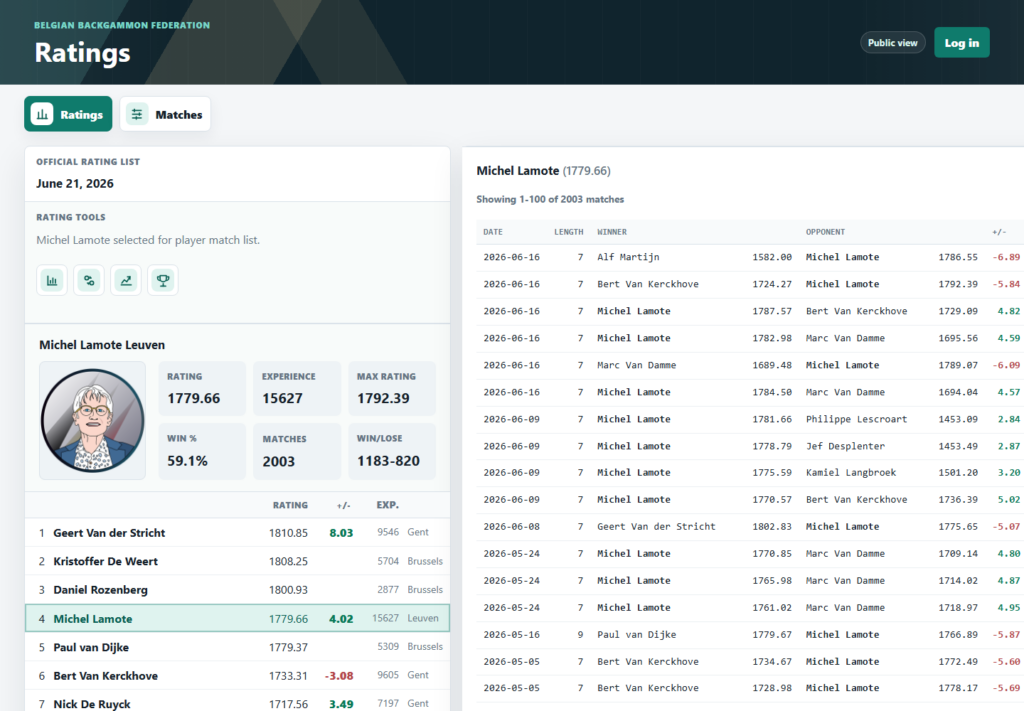
The Matches statistic is itself a button. Click it to open that player’s full match list. The list shows date, match length, opponent, rating before the match, rating change, and event. Prev and Next move through long histories.
Rating Analysis Tools
The four square icon buttons sit below Rating tools. Hovering with a mouse shows each name; the functions are listed left to right below. Clicking an active tool again closes its result.
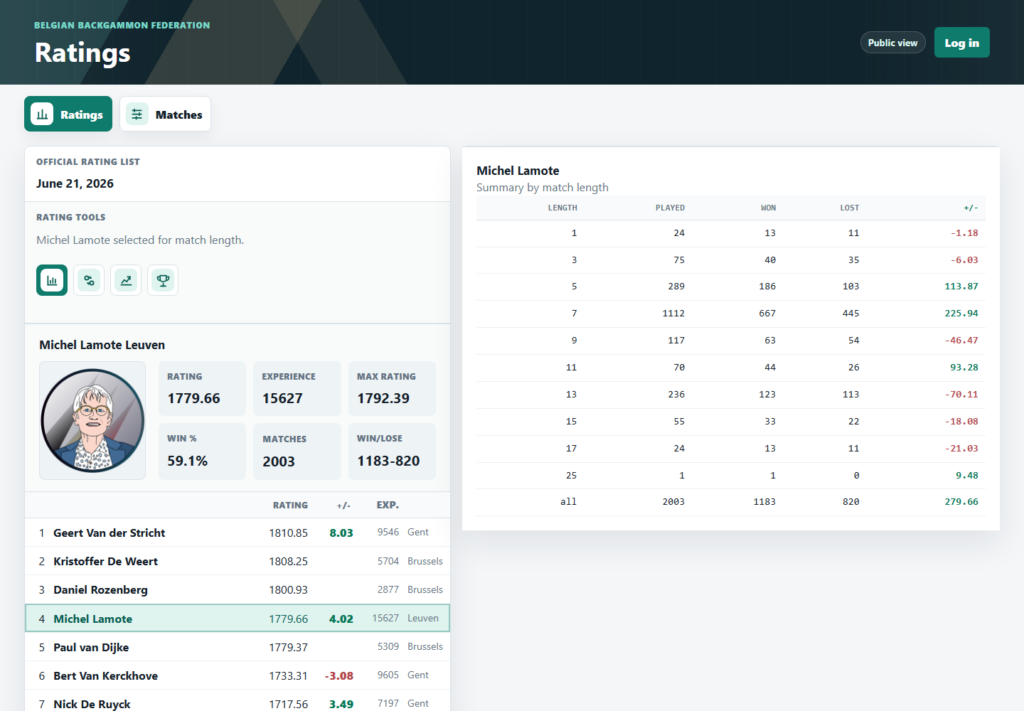
By match length
Select one player, then click By match length (bar-chart icon). The result groups all of that player’s matches by length and shows played, won, lost, and total rating change. The final row totals all lengths.
By opponent
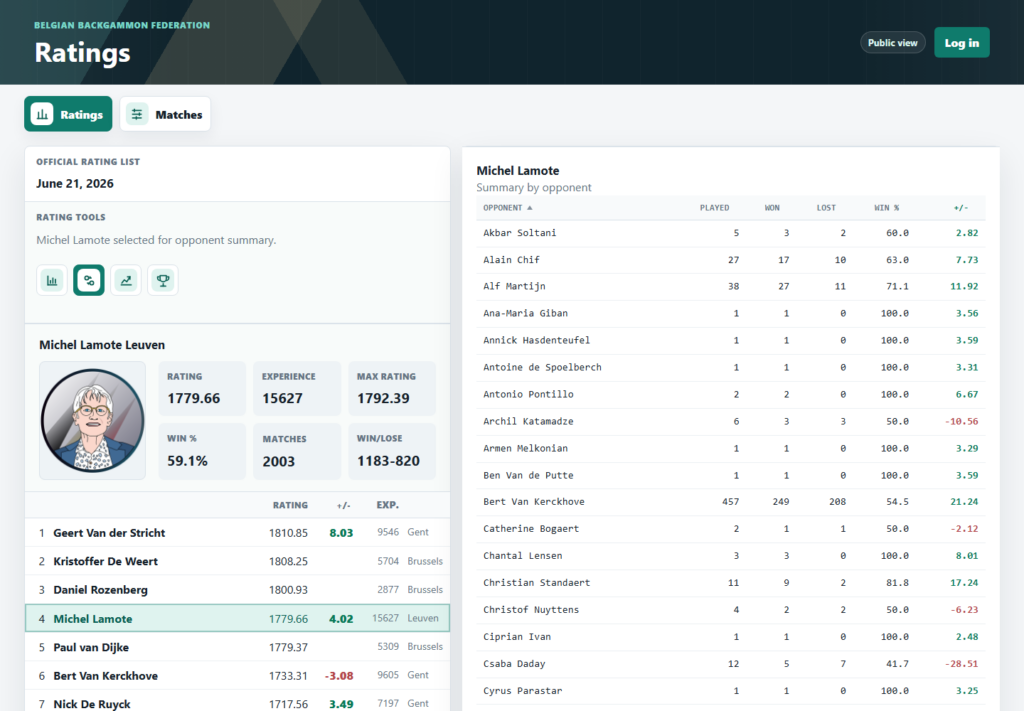
Select one player, then click By opponent (connected-circles icon). It shows played, won, lost, win percentage, and total rating change for every opponent. Click any column heading to sort; click it again to reverse the order.
Evolution graph
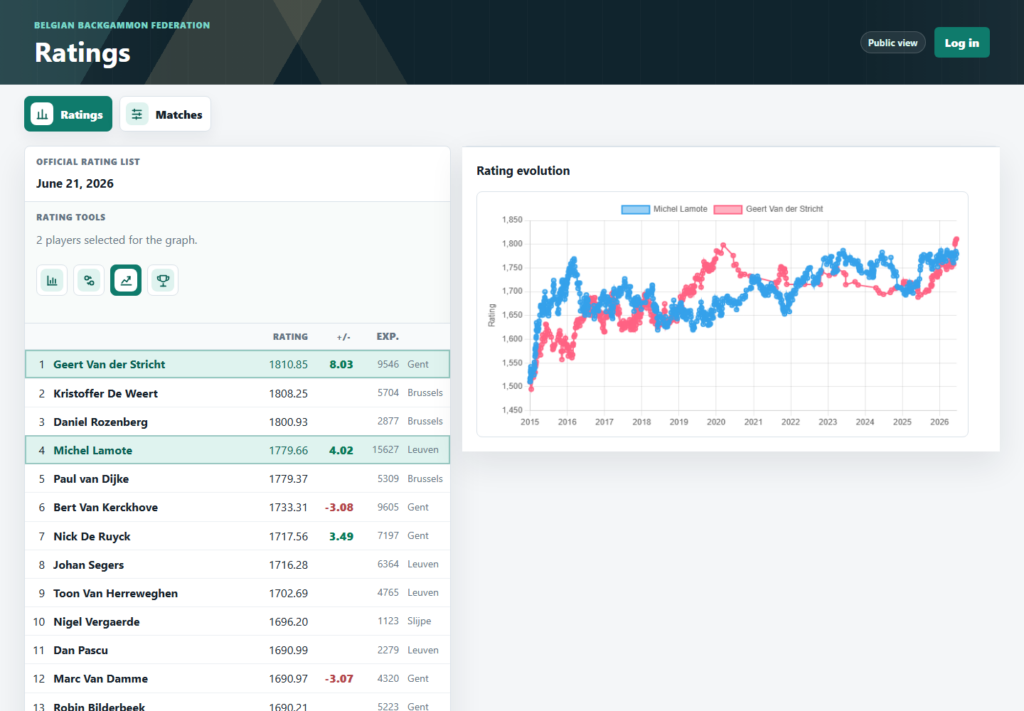
Click Evolution graph (rising-line icon), then select one or more player rows. Each player gets a separate line. Roll the mouse wheel over the chart to zoom horizontally, drag to pan, or pinch on a touch screen. Click a selected player again to remove that line.
Record list
Click Record list (trophy icon). No player selection is required. The table lists each new all-time rating record with its date, rating, record holder, opponent, match length, and event.
Matches and Filters
Click Matches to open the complete match list. Each row shows date, length, winner and winner’s pre-match rating, opponent and opponent’s pre-match rating, the winner’s rating gain, and event. Results are newest first.
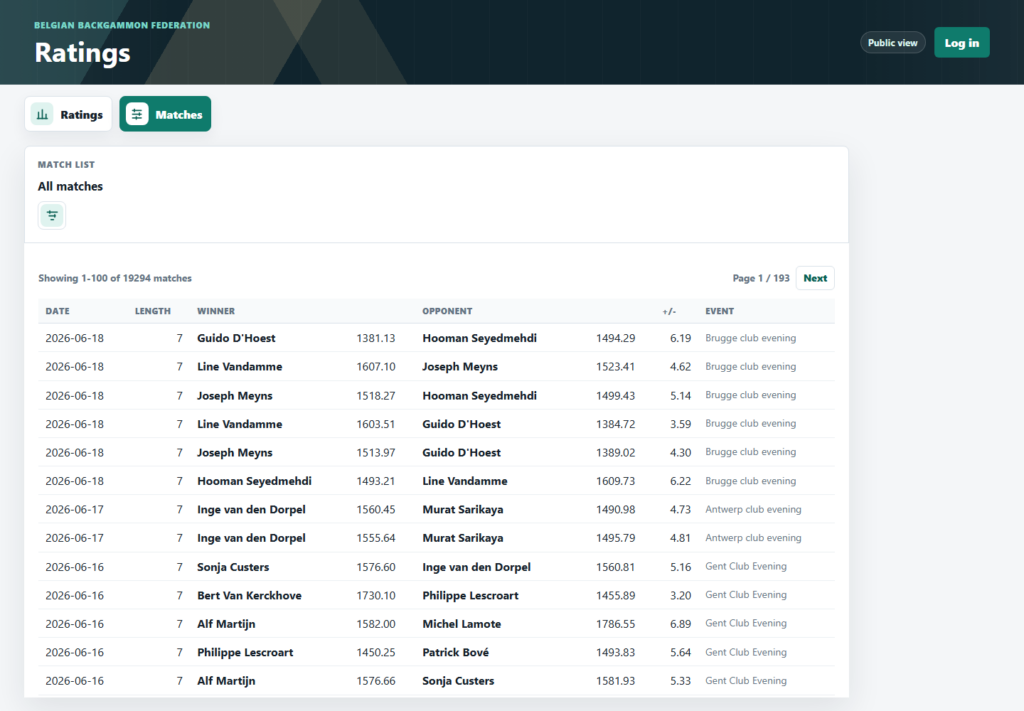
Click the Filter matches sliders icon to expand the filter form.
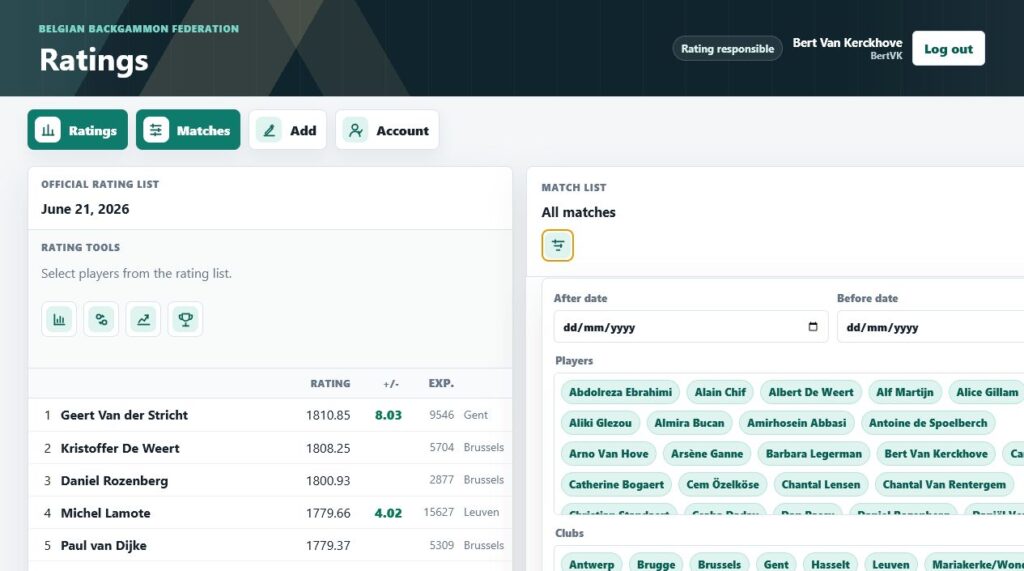
- After date / Before date: limit the date range.
- Players: include matches in which any chosen player took part.
- Clubs: include matches involving a member of any chosen club.
- Lengths: include any selected match length.
- Events: include matches whose event matches any selected event.
- Apply filters runs the search. Active filters appear as removable pills above the list.
- Reset clears all filters and returns to the default page.
- Prev and Next move between pages of 100 results.
Choices inside one category are alternatives (for example, Player A or Player B). Different categories work together (for example, chosen player and chosen length and date range).
Signing In as a Rating Responsible
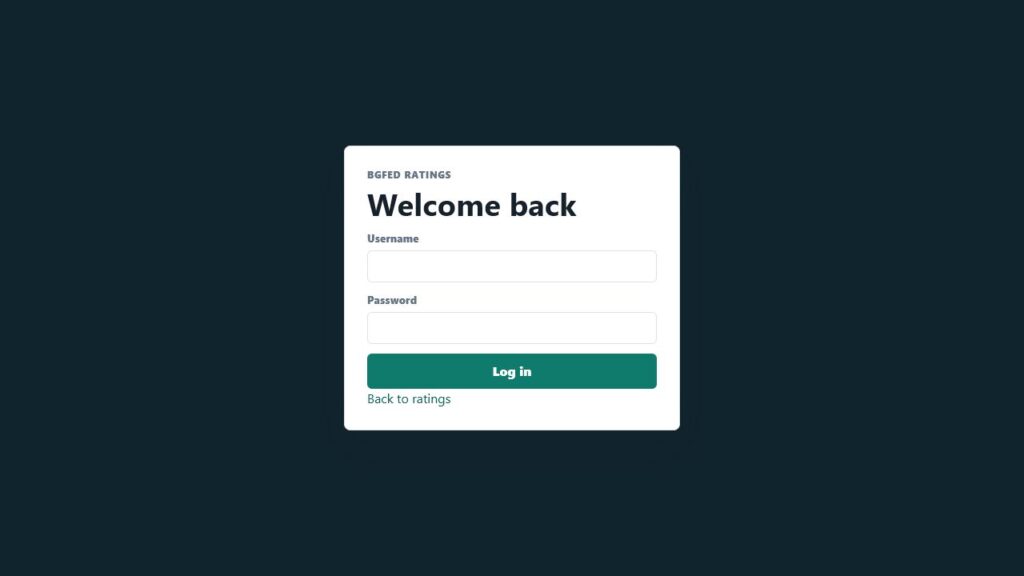
Click Log in, enter the supplied username and password, and click the Log in button. An incorrect entry leaves you on the login page with an error message.
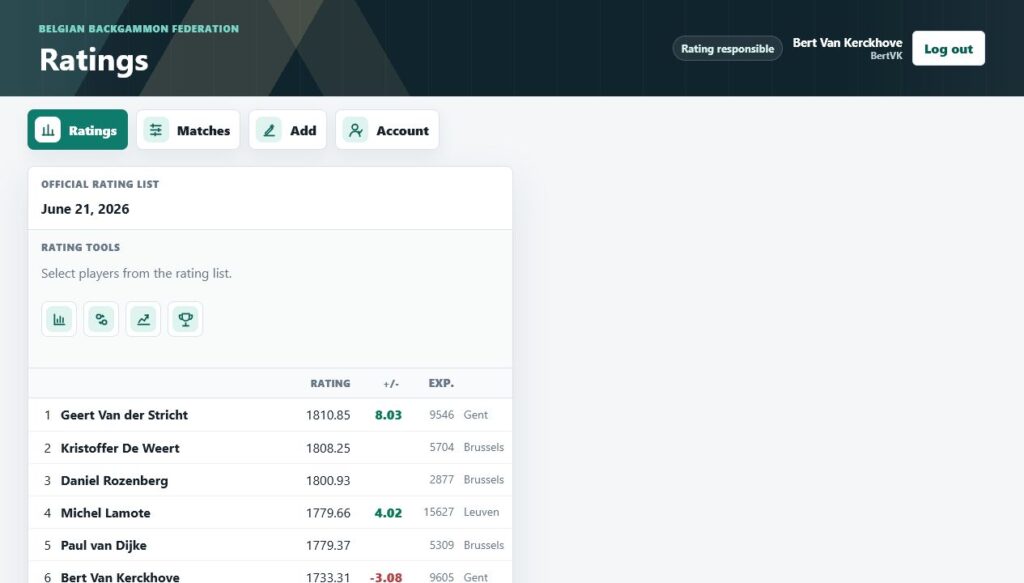
After a successful login, the header says Rating responsible and shows the linked player’s name and username. The navigation gains Add and Account.
Player Sessions
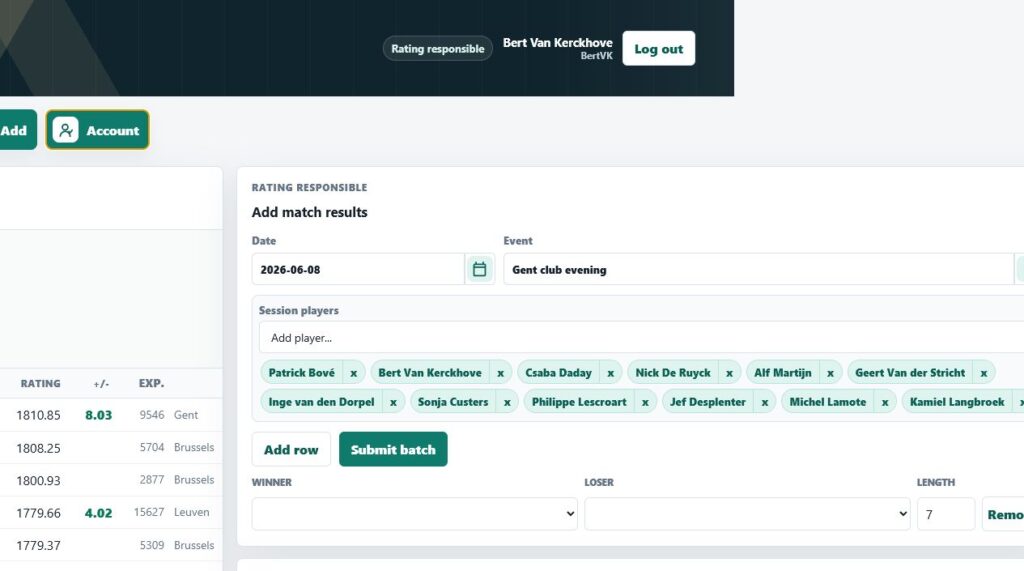
A player session is a reusable working roster for one rating-entry session, such as a club evening or tournament round. It keeps the winner and loser lists short and reduces spelling or selection mistakes when entering many matches among the same group.
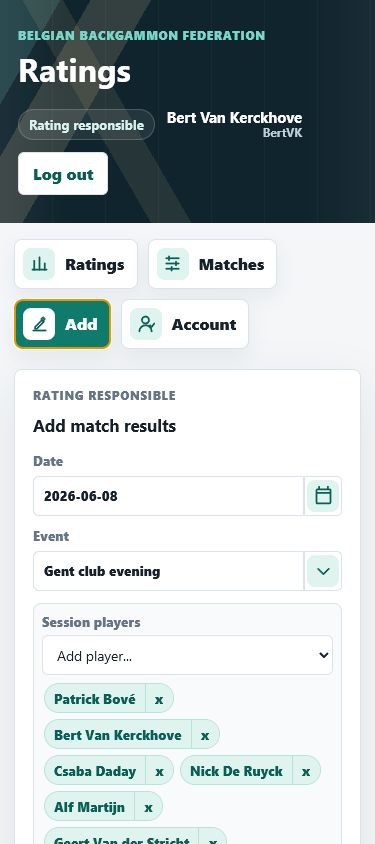
Click Add to open the entry panel. Set the common date and event, then choose participants from Add player…. Every chosen player becomes a green player pill. The saved date, event, and roster are restored the next time this rating responsible opens the form.
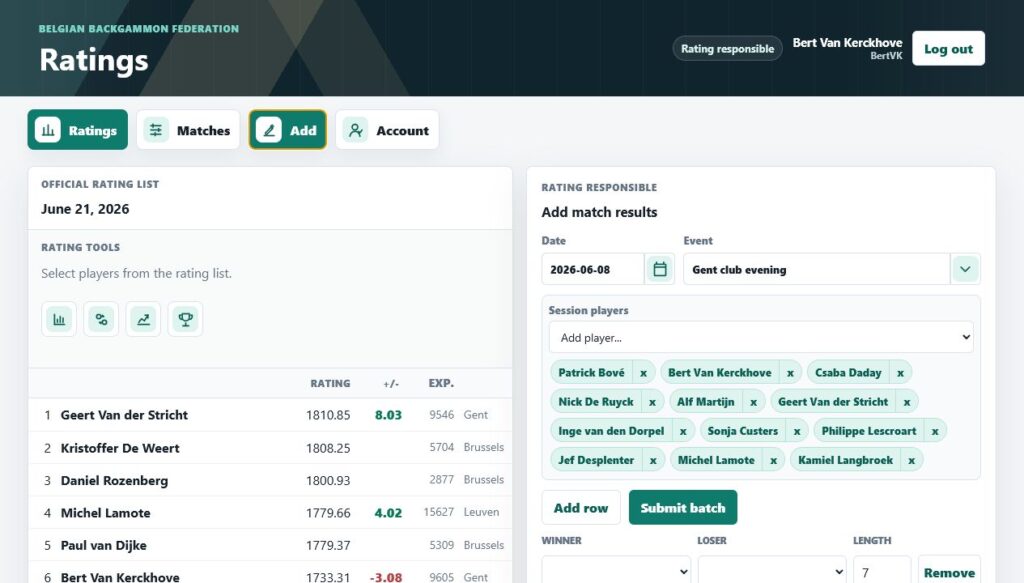
- Calendar icon: opens the date picker. Future dates are not allowed.
- Event field: type an event name. The down-arrow opens existing event names; selecting one copies it into the field.
- Add player…: adds one participant. A player already in the session is disabled in this list.
- x on a pill: removes that player from the session and from the short winner/loser choices.
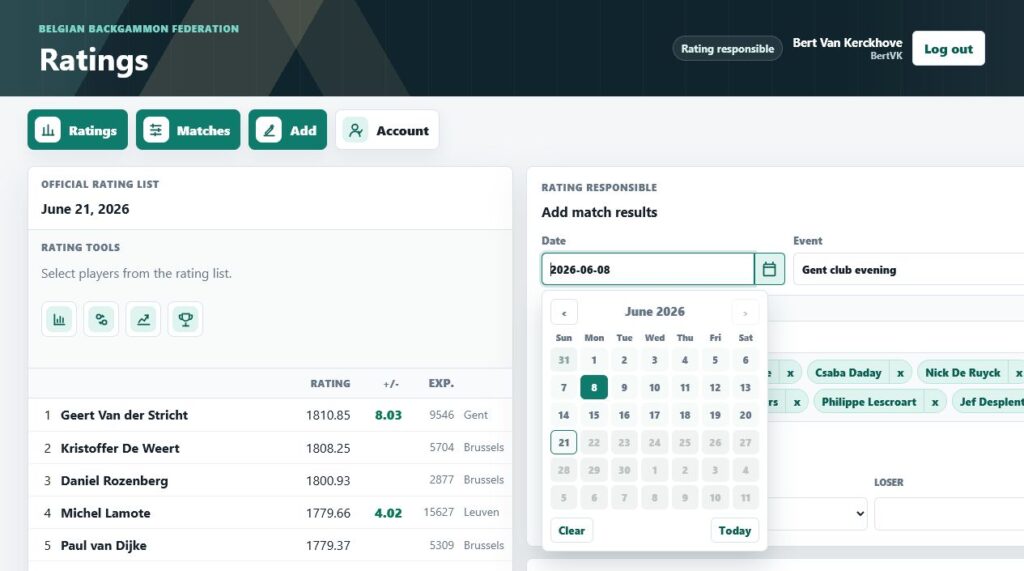
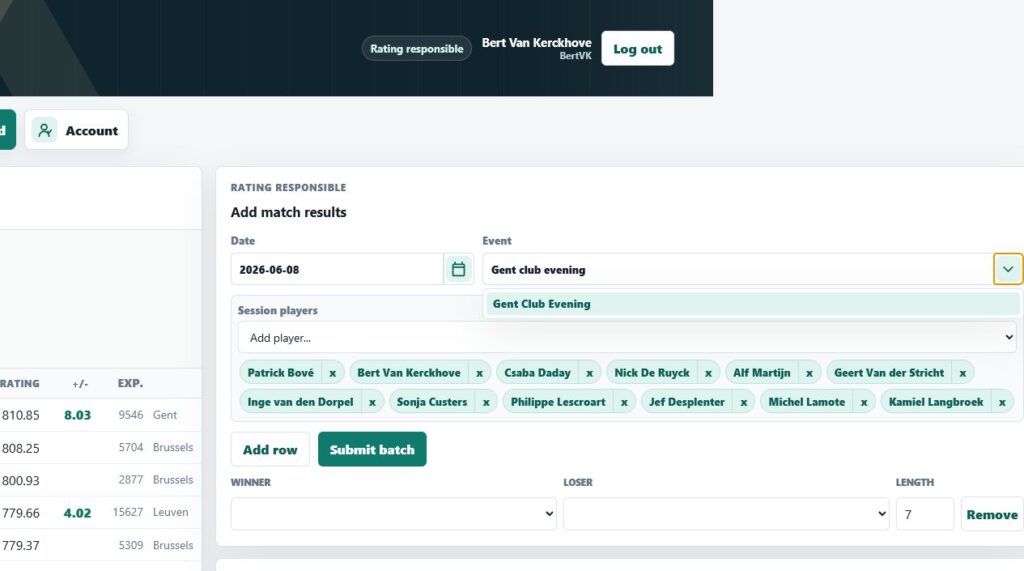
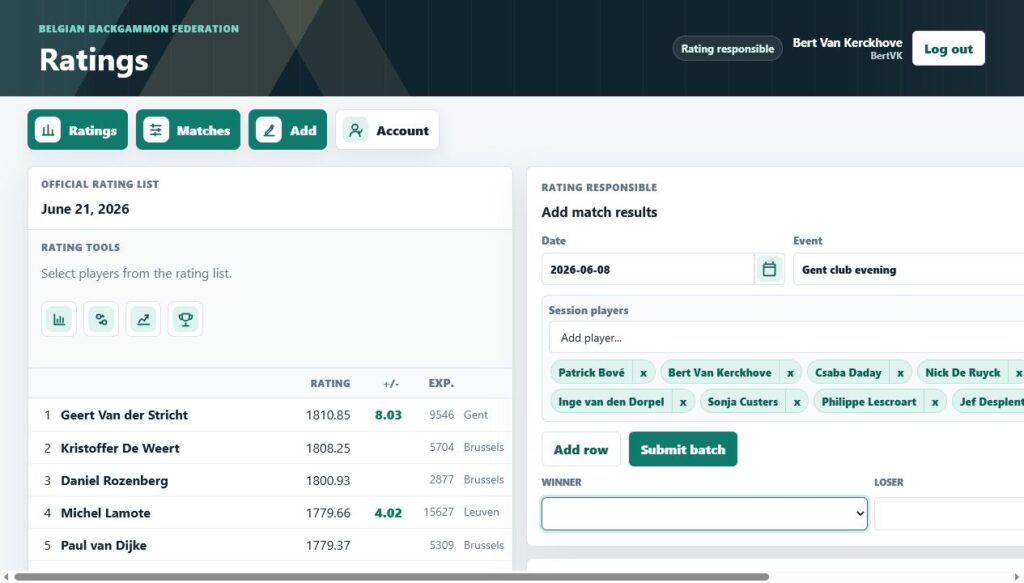
Desktop shortcut: drag a player pill directly onto a row’s Winner or Loser box. The box highlights as a drop target and fills with that player. On a phone or tablet, use the row’s dropdowns instead.
Adding Match Results
- Confirm the shared Date and Event.
- Build the player session.
- In the first row, choose the Winner, Loser, and Length. The players must differ and length must be from 1 to 99.
- Click Add row for each additional result. New rows reuse the session, date, event, and recent length to speed up entry.
- Click Remove on an unwanted row. The form always keeps at least one row available.
- Review every result, then click Submit batch once.
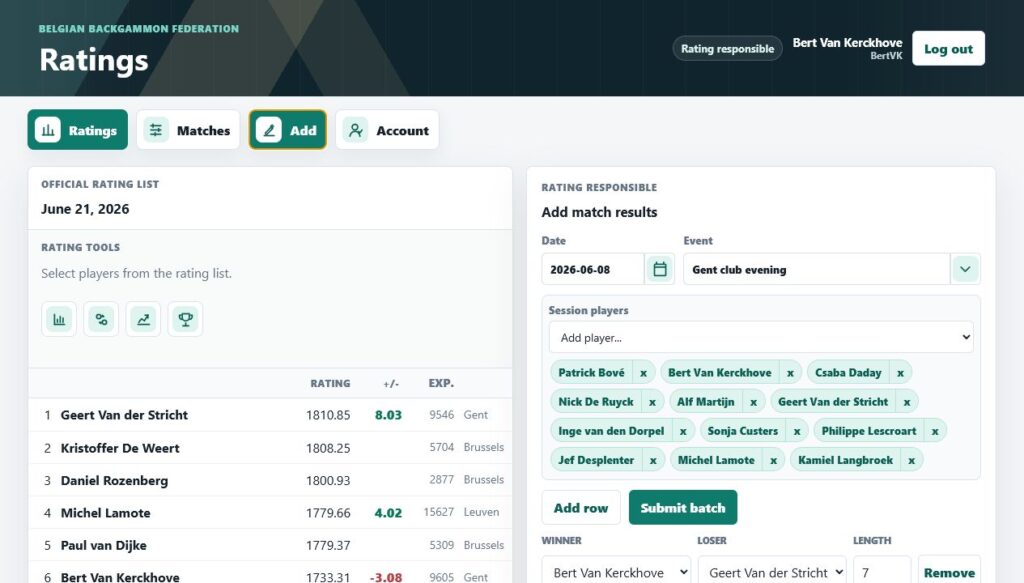
Pressing Enter while working in a row moves entry forward rather than submitting unexpectedly. Complete rows are saved together. Incomplete rows are kept on screen for correction. After success, a green message reports how many results were saved.
Check before submitting: saving a result immediately changes calculated ratings. Do not use the browser’s Back button as an undo command. Use the match-edit controls described next if a result you entered needs correction.
Editing and Reordering Your Matches
A rating responsible with the Edit own permission can edit, remove, and reorder matches that carry his or her own username as the entrant. Other people’s matches have no action button and cannot be changed. The account used in these screenshots has that permission.
Action menu
Click the three-line Match actions button at the right of an editable row. The small menu can contain:
- Pencil: open the selected match for editing.
- Up arrow / Down arrow: move the match one place among editable matches on the same date. An arrow is absent when that move is not allowed.
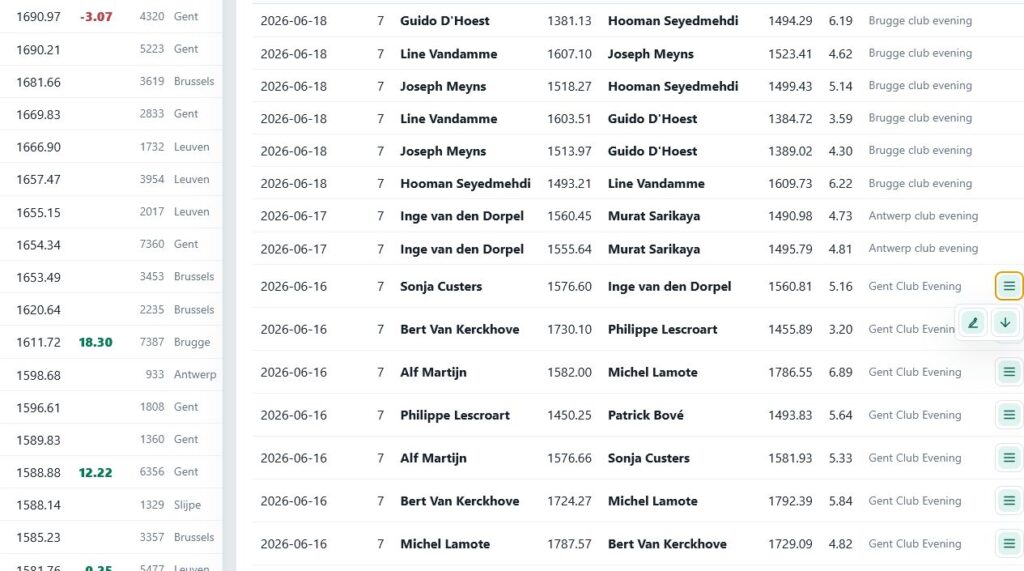
Edit or remove
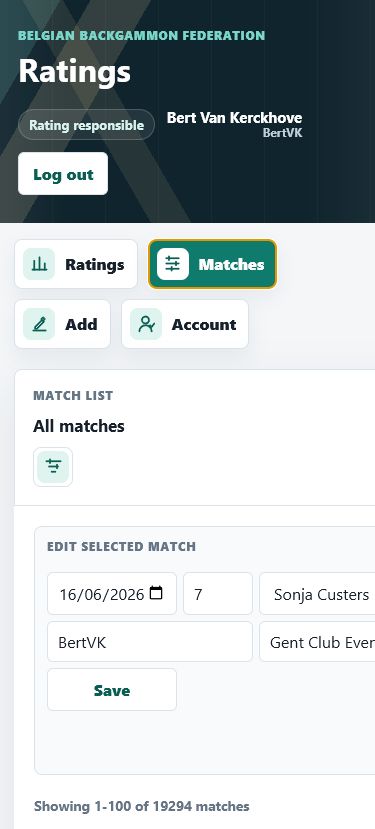
Click the pencil. An Edit selected match panel appears above the list. Correct the date, length, winner, loser, or event and click Save match. The Entered by value is read-only. Click Remove selected match only when the result itself should be deleted; the site asks for confirmation before removal.
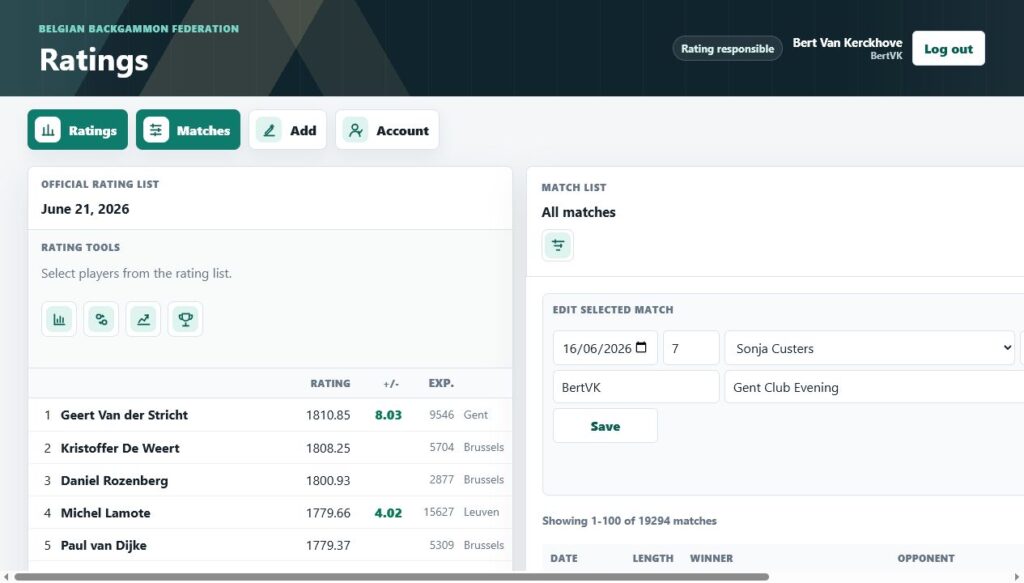
Reorder
Order matters when several matches share a date because ratings are recalculated in stored order. On desktop, grab an editable table row and drag it before or after another editable row from the same date. A colored line shows the drop position. The row moves only after the server accepts the change.
The arrow buttons are the precise alternative and are especially useful on mobile. Reordering is limited to adjacent editable matches on the same date; it cannot move a result through somebody else’s protected match or into a different date.
Account and Logout
Click Account to change your password. Enter the current password, then enter the new password twice and click Change password. The new password must contain at least 10 characters, including a lowercase letter, uppercase letter, and number.
Click Log out in the header when finished, particularly on a shared device. You return to Public view.
Desktop and Mobile Differences
| Desktop / wide screen | Mobile / narrow screen |
|---|---|
| Ratings and a tool panel such as Add can stay open side by side. Clicking a green section button can close just that panel. | Only one main section is shown at a time. Tapping Ratings, Matches, Add, or Account replaces the current section. |
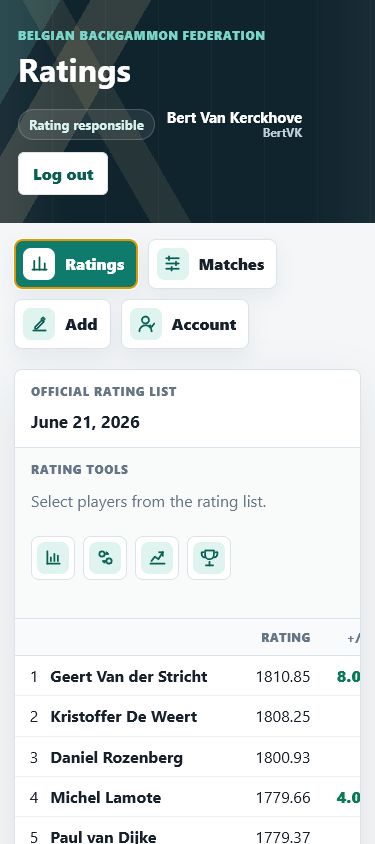
| The header is horizontal and the account details sit at the right. | The header stacks vertically. Navigation remains near the top for touch access. |
| Batch rows display Winner, Loser, Length, and Remove in one line. | Each match row stacks its controls vertically; the column-heading row is hidden. |
| Player pills can be dragged onto winner or loser boxes. Editable match rows can be dragged to reorder. | Use the winner/loser dropdowns and the Match actions up/down arrows. Touch dragging is not the dependable workflow. |
| Wide rating and match tables fit more columns. | Swipe horizontally inside a wide table to see columns that do not fit. The page itself remains single-column. |
Messages and Common Problems
- No complete match rows were submitted: fill winner, loser, and length in at least one row.
- Incomplete or invalid row: check for blank fields, identical winner and loser, or a length outside 1-99. Problem rows are highlighted and retained.
- Invalid date: use the shown yyyy-mm-dd format and do not choose a future date.
- No edit/action icon: the match was not entered by your account or your account does not have Edit own permission.
- No move arrow: the adjacent match has another date, is protected, or there is no row in that direction.
- Match changed by another update: refresh the page and repeat the edit using the latest data.
- Graph is empty: activate Evolution graph and then select at least one player.
- Hidden table columns on a phone: swipe horizontally inside the table area.
This manual intentionally excludes administrator features.